
Screenshots show sample data from a preview account, not real trading results.
A new account already has a budget, a risk level and three coins. Paste your AI key (step 1), then pick how you trade:
- Live trading: real money from your own Binance account. Follow chapter 4.
- Manual mode: by hand on any exchange. Tap Manual on the Trading mode card (chapter 5), then step 3.
- Paper trading: no real money. Follow steps 2 and 3.
1 Your AI key
The AI runs on your own AI key. The provider bills you for what you use: from about $18 a month with our top AI model, from about $4 with a lighter one. Add credit there first.
- Anthropic (recommended): create a key at console.anthropic.com.
- OpenAI: create a key at platform.openai.com.
Paste the key into the welcome card and press Save and run. To change it later: the API keys card in Settings.
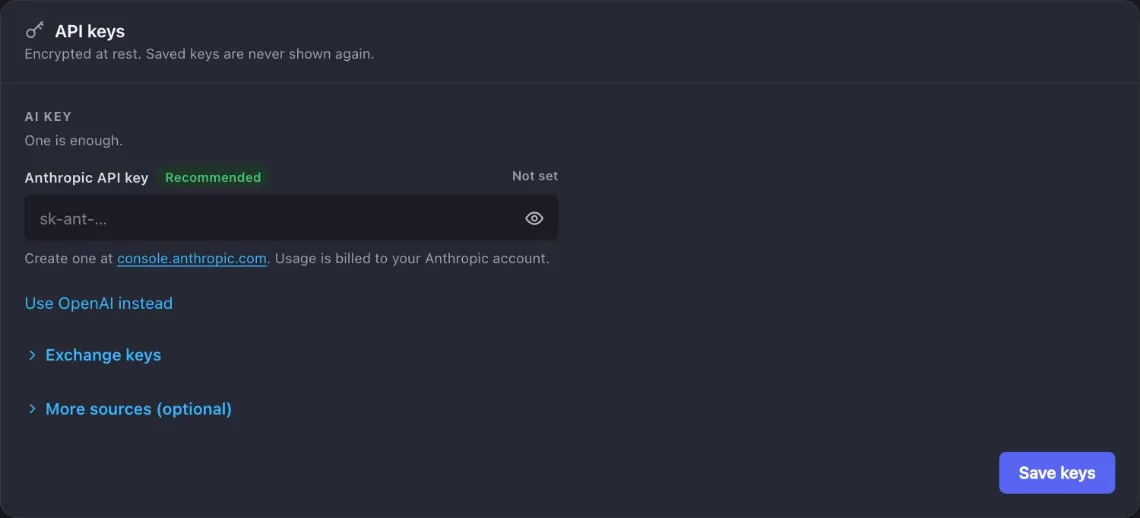
- Anthropic API key Recommended. Usage is billed to your Anthropic account.
- Key tag Not set, Set, Connected or Rejected. A rejected key says why under its field.
- Show / hide Shows what you typed before you save. Saved keys are never shown again.
- AI key One is enough.
- Use OpenAI instead Opens the OpenAI API key field.
- Exchange keys Your Binance key for Real money: trade-only. Paper needs none.
- More sources (optional) CryptoPanic, X and Reddit keys add news and social posts.
- Save keys Encrypts and saves what you typed. Blank fields keep their current value.
No exchange keys for Paper
Paper trades on paper at Binance's live prices, with Binance's 0.1% fee on every buy and sell. It needs no exchange keys and no Binance account.
2 Turn on Paper
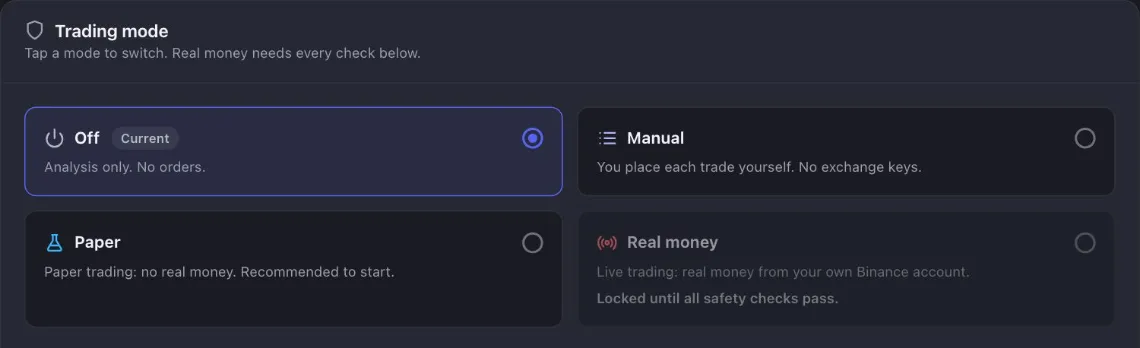
On the welcome card, press Start: Settings opens on the Autopilot card. While trading is off, its Start autopilot turns Paper on first, with no exchange keys to add, and the top bar shows Paper. You can also tap Paper on the Trading mode card.

- One step left: Start autopilot The welcome card’s step after your first analysis.
- Start Opens Settings on the Autopilot card.
- Hide Hides the welcome card.
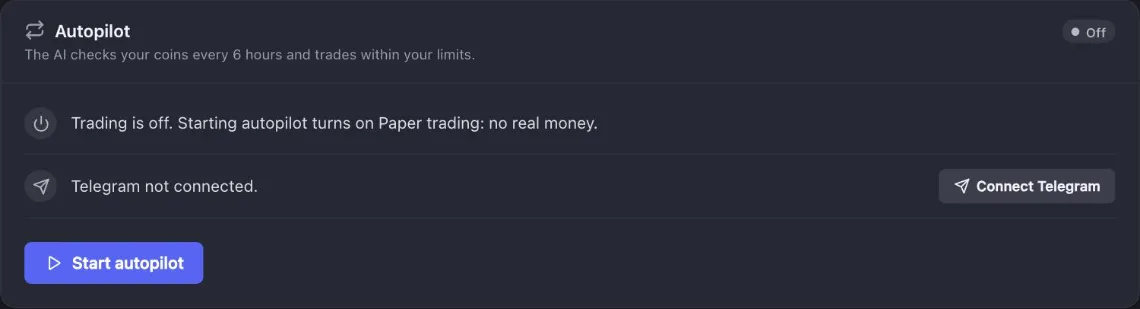
- Status Off or On, like the autopilot badge in the top bar.
- Schedule How often the AI checks your coins: your Analysis interval, every 6 hours on a new account.
- Trading mode What its trades will be. While trading is off, Start autopilot turns Paper on first, never Real money.
- Connect Telegram Your one-time link, as on the Telegram alerts card. Telegram then tells you every trade.
- Start autopilot Turns Paper on first, with no exchange keys, then starts: the first check right away, then every 6 hours.
3 Start autopilot
From Off, that press also starts autopilot. In Paper or Manual mode, press Start autopilot on the Autopilot card. The first check runs right away, then every 6 hours. Your setup is done.
Telegram alerts (optional)
The Telegram alerts card in Settings sends you a message when something happens in your account.

- Telegram alerts Below Trading mode.
- What we keep Your Telegram chat ID, until you disconnect. Alerts pass through Telegram.
- Connect Telegram Makes your one-time link.
Telegram on your phone? Open ForecastsPro there and connect.
- Press Connect Telegram for your link, then Open Telegram. It works once, for 10 minutes.
- In Telegram, press Start. The card shows Connected.
You get an alert:
- In Real money and Paper: every buy, sell, stop-loss or take-profit that fills. With Real money also: the loss lock, a safety check that turns Real money off, or a stop-loss that may be missing.
- In Manual mode: when there are trades to place, at most once in 12 hours for the same trades.
- In Manual mode also: once when a buy you marked Done, and still hold, reaches its stop-loss or take-profit, so you can press Sold (chapter 5).
- Autopilot: once when you start it (not in Off), saying when its first check comes, and in every mode when it cannot run.
To stop, press Disconnect. A password change or reset also turns alerts off: connect again after it. An alert can fail to arrive: the app and your emails stay the record.
The Telegram bot only sends
It never asks for your password, your API keys or money, and it cannot trade.
Budget and risk (optional)
The Strategy card is last in Settings.
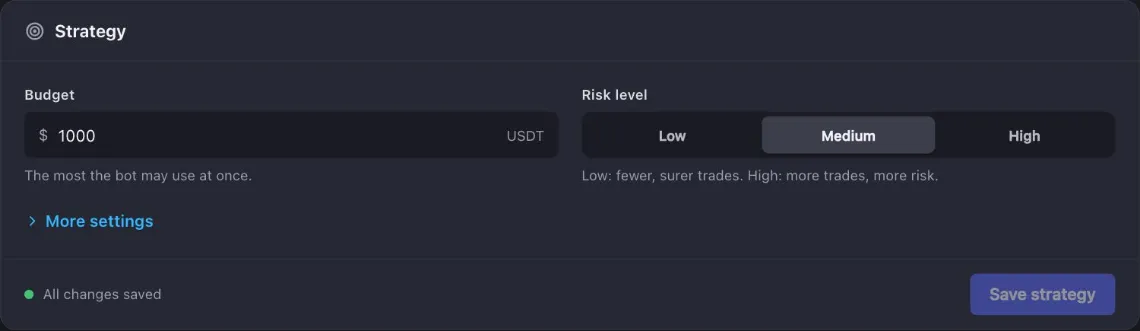
- Budget The most the bot may use at once.
- Risk level Low: fewer, surer trades. High: more trades, more risk (chapter 7).
- More settings Time horizon, Analysis interval, Stop-loss, Take-profit, AI model and Analysis depth, already set for you.
- Save strategy Saves your changes. Discard appears while something is unsaved.
A good first strategy
- Budget: the amount you want to trade.
- Risk level: Low or Medium.
- More settings: leave them as they are. A new account has Time horizon: Days, with the Analysis interval at 360 (every 6 hours).
Then press Save strategy.
Time horizon and the automatic interval
Time horizon sets the candles the AI reads and, with your risk level, how far the stop-loss and take-profit sit: closer on Days, wider on Months. With the Analysis interval at 0, it also sets how often autopilot runs:
| Horizon | Style | Candles read | Interval at 0 |
|---|---|---|---|
| Days | Swing | 1h, confirmed on 4h | every 15 minutes |
| Weeks | Trend | 4h, confirmed on 1d | every 60 minutes |
| Months | Long term | 1d, confirmed on 1w | every 6 hours |
Or type an interval in minutes, from 5 to 10,080 (7 days). Checking more often costs more AI usage: every 15 minutes, up to 24 times the AI cost of every 6 hours. Settings shows it as you type. Use every 6 hours sets every 6 hours (360 minutes) and saves it in one tap.
The AI model
Under More settings, AI model starts on the most capable model. Want it faster or cheaper? With an Anthropic key, pick one of three:
- Most capable: the default, from about $18 a month.
- Faster: about $9 to $36 a month.
- Cheapest: about $4 to $18 a month.
An OpenAI key shows its own two models. A lower Analysis depth costs less too.
Your coins (optional)
A new account watches BTC, ETH and SOL. To change them, press Edit on the Watchlist card. Type a coin's short name, such as ADA, and press Add. Or press Largest or Busy today for ideas. Adding a coin trades nothing: the AI checks it at the next run. The coin must trade against USDT on Binance.
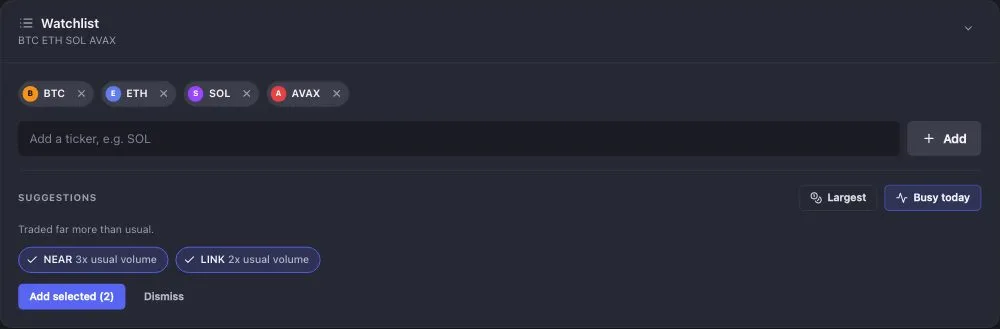
- Coin chip A coin on your watchlist. The × removes it.
- Add a ticker Type a ticker such as SOL.
- Add Adds the ticker you typed.
- Largest The biggest coins. Replace watchlist swaps your list for them.
- Busy today Up to 3 large coins that traded far more than usual on the last full day (UTC).
- Suggested coin Picked at first. Press it to leave it out.
- Add selected Adds the picked coins to your watchlist.
5 to 10 well-known coins are enough (30 at most). More coins cost more AI usage. Keep a coin while you hold it: once it is removed, the AI cannot sell it.
Download the guide (PDF)The same guide, to keep or to share. 40 pages, 6 MB.