
Screenshots show sample data from a preview account, not real trading results.
The risk gate works as in every mode.
Switch to Manual mode
On the Trading mode card in Settings, tap Manual. Keep on your watchlist only coins your exchange also lists. Then connect Telegram, so you know when a trade waits, and start autopilot with an interval that leaves you time to place each trade (chapter 3).
A trade to place
After an analysis, each approved buy or sell has a box under its line: Place this on your exchange. A banner counts the waiting trades, for example "2 trades to place."
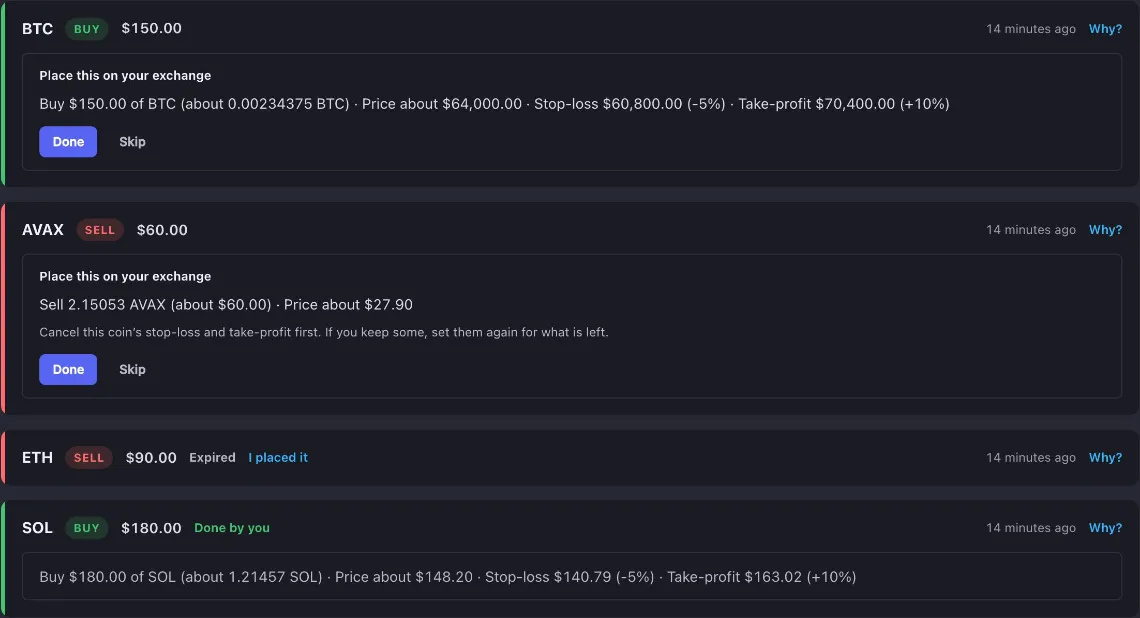
- Place this on your exchange A trade the risk gate approved. You place it by hand.
- The trade The amount, about how many coins, the price, and the stop-loss and take-profit to set after a buy.
- Done Press it after you placed the order (step 4 below).
- Skip You are not placing this one. No trade is recorded.
- Before a sell Cancel that coin’s stop-loss and take-profit on your exchange first.
- Expired No longer waiting. If you placed it after all, press I placed it.
- Done by you A trade you confirmed.
Place it in 4 steps
- For a sell, first cancel that coin's stop-loss and take-profit on your exchange.
- Place it on your exchange as a market order (at the price now), for the amount in the box.
- After a buy, set a stop-loss and a take-profit on your exchange, at the two prices in the box.
- Press Done, then type the quantity and the price your exchange shows. Not in US dollars? Keep the price already in the field.
A buy under $10 is blocked as too small. A sell has no minimum.
When a level is reached
The app cannot see your exchange: when your stop-loss or take-profit fills there, press Sold on that position, type the quantity and the price your exchange shows, and press Save.
With Telegram alerts on, the app tells you once, within about an hour, when a buy you marked Done, and still hold, reaches either level. The alert's button opens your positions.
The buttons
| Button | What it does |
|---|---|
| I placed it | On a Skipped or Expired trade that you placed after all, while it is still listed. It opens the same form as Done. |
| Sold | On each position. It confirms a sale the app cannot see: a stop-loss or take-profit that filled, or your own sale. |
| Undo | In the message after Done or Sold, for 30 seconds. It takes that entry back. Later, to take back a buy, press Sold and type the same price. |
Your positions and trades
A buy you confirm becomes a position on the Positions card, which reads From the trades you confirmed. Recent trades lists them too. Manual mode keeps its own figures.
How each buy ended
For 60 days, the app follows each buy idea on Binance's price and shows which came first, its stop-loss or its take-profit, for example "Skipped · Stop-loss reached". A line above Earlier decisions counts how your last 20 ended. Prices on your exchange can differ.
When a trade expires
A waiting trade expires at the next analysis, when you confirm another trade for the same coin, or when you leave Manual mode (with trades waiting, the app asks first: Leave Manual). A waiting buy can also expire when you confirm a trade for another coin. Placed it after all? Press I placed it.
What the app cannot see
- The app never places, checks or cancels an order on your exchange, and shows no balances.
- Your caps and the kill switch count only the trades you confirm, and fees only if you include them in what you type.
- You can confirm a buy up to 110% of the amount in its box: more stays outside the app's figures.
Download the guide (PDF)The same guide, to keep or to share. 40 pages, 6 MB.