
Screenshots show sample data from a preview account, not real trading results.
Six steps. Then autopilot trades for you, within your limits.
Before you start
Real-money trading, where available, may be restricted in your country (for example the EU/EEA, UK or US) because of local rules or Binance availability. The Trading mode card says if Real money is open for you. No Binance where you live? Use Manual mode (chapter 5). New to trading? We suggest a few weeks in Paper first.
1 Confirm your email, acknowledge the Risk Disclosure
Press Confirm your email in your receipt email. Then, on the Risk disclosure card of your Account page, read the document, tick the box and press Acknowledge.
2 Use a separate account
Open a separate Binance account or sub-account, with only the money you want to trade. Never your main account or your savings.
3 Create a trade-only Binance key
Open Exchange keys on the API keys card and copy our server IP address. On Binance, in API Management for that account, create a key with these permissions:
Turn on
- Enable Spot & Margin Trading (reading is on by default)
- Restrict access to trusted IPs only, with our server IP address
Leave off
- Withdrawals
- Internal and universal transfers
- Margin loans
- Futures, options and portfolio margin
4 Save the new keys
Paste the key and its secret into Binance API key and Binance API secret, and press Save keys. On the Trading mode card, Binance key: Spot only, IP-restricted then shows a green check. If not, it says what to fix.
5 Switch Real money on
With every safety check green, tap Real money. Read the disclaimer, type a small Maximum real-money amount and a Loss lock you can accept, tick the box and press Switch Real money on.
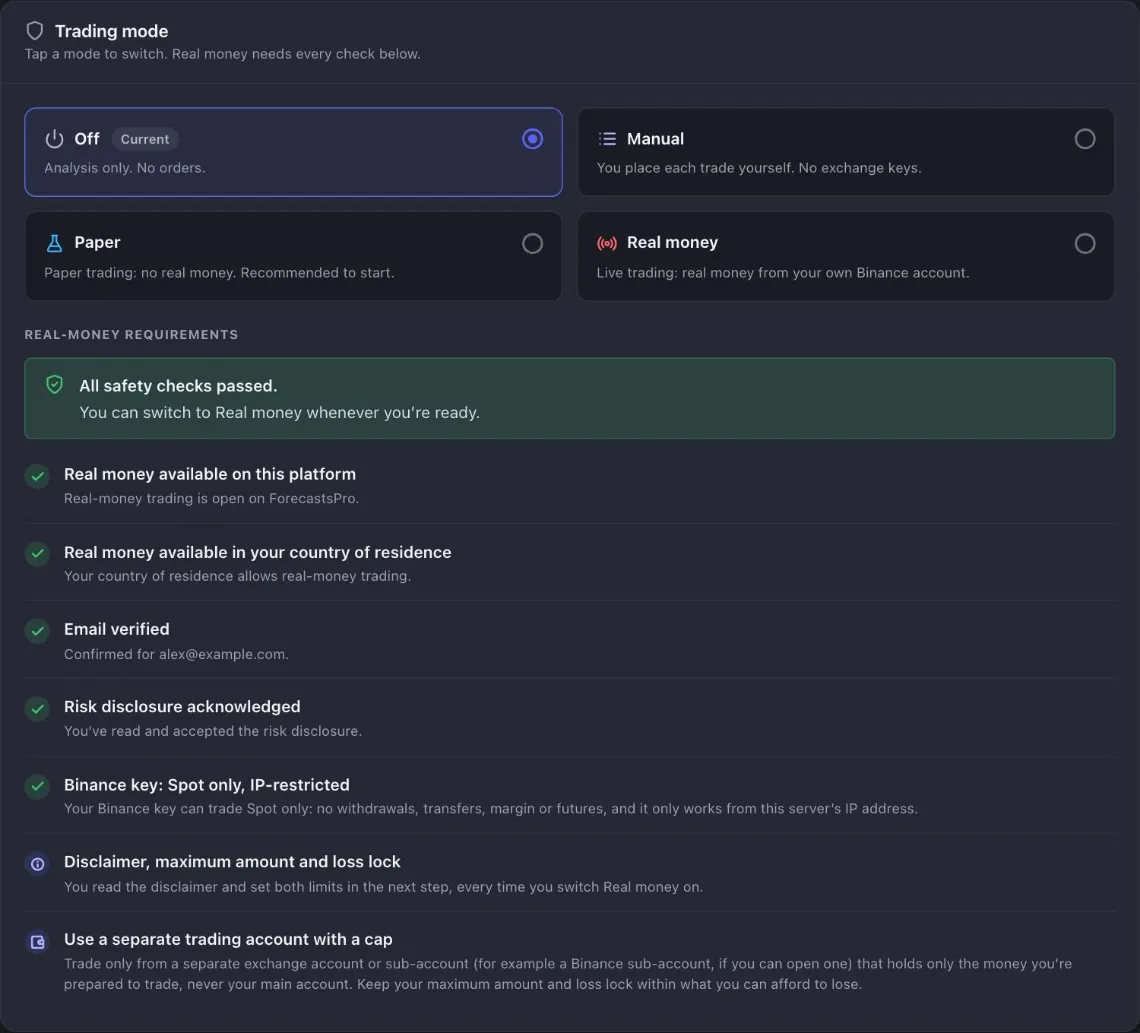
- Real money Tap it to open the Real-money dialog (step 5).
- All safety checks passed You can switch to Real money whenever you’re ready.
- Platform Real money is open on ForecastsPro.
- Country Your country of residence allows it.
- Email verified Step 1.
- Risk disclosure acknowledged Step 1.
- Binance key: Spot only, IP-restricted Steps 3 and 4: no withdrawals, and only from our server IP address.
- Disclaimer, maximum amount and loss lock Asked every time you switch Real money on (step 5).
- Use a separate trading account with a cap Recommended, not checked (step 2).
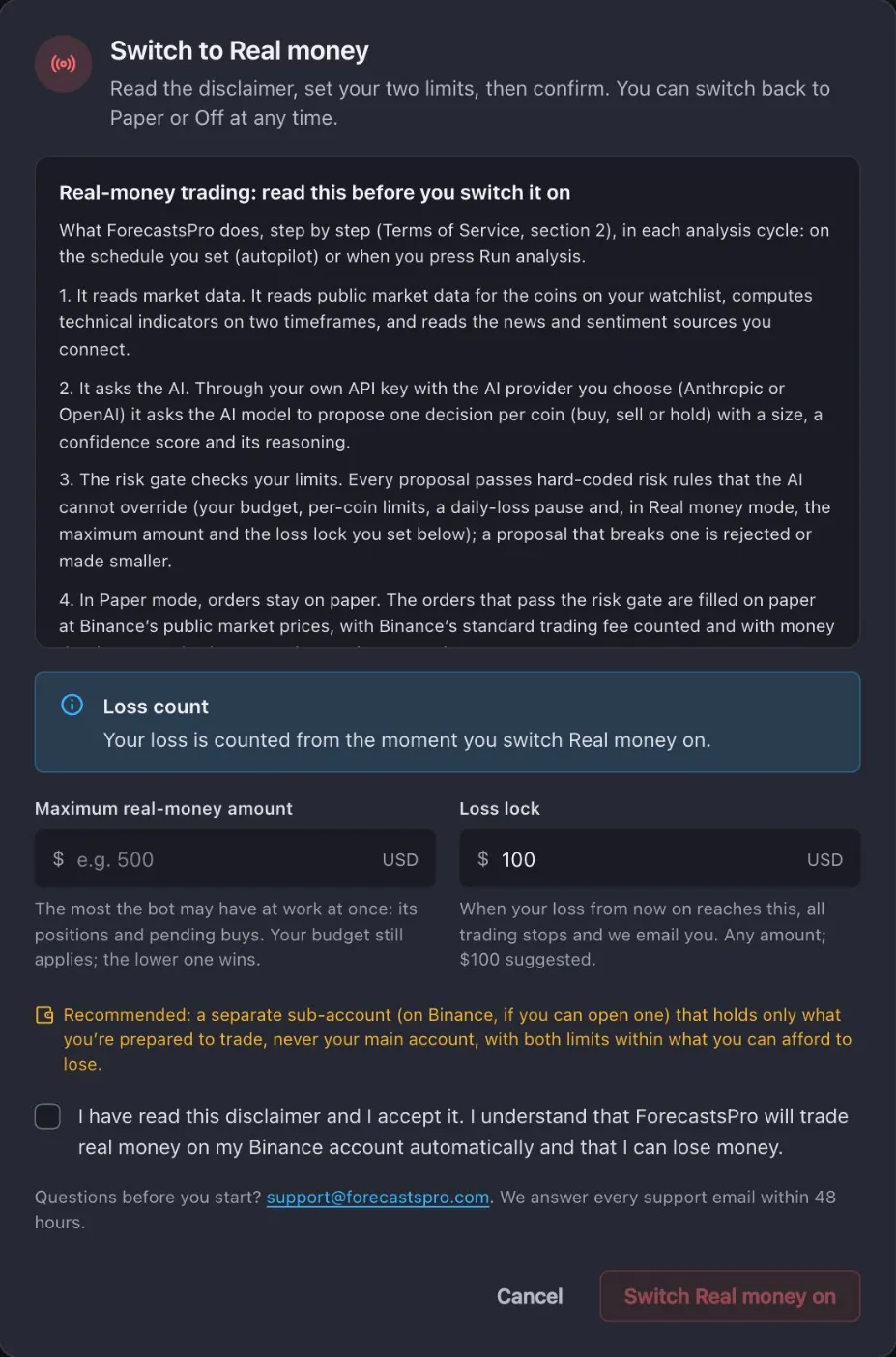
- Disclaimer Read it to the end. It has a version number.
- Loss count Your loss is counted from the moment you switch on.
- Maximum real-money amount The most the app may have at work at one time. Your budget still applies, and the lower one wins.
- Loss lock When your loss reaches it, all trading stops. Nothing is sold. $100 suggested.
- Separate account Keep both limits within what you can afford to lose.
- Accept Tick to accept the disclaimer.
- Switch Real money on Switches Real money on. The app checks everything again first.
Autopilot already running? Its next run can then place real orders without asking you: stop it first if you do not want that.
Keep the risk level at Low or Medium. Raise your limits only after weeks of results you understand, never to recover a loss.
6 Start autopilot
Press Start autopilot on the Autopilot card, then Start autopilot again to confirm. The first check runs right away.
While Real money is on
- Every Run analysis asks you to confirm first (Run with real money), and so does Start autopilot.
- Your loss count starts when you first switch Real money on. New limits, or switching off and on again, do not reset it.
- Tap Off at any time: no new orders, and nothing is sold.
- To go back to Paper, tap Paper: no keys to paste, and your Binance key stays saved for next time. Your real positions stay on Binance with their orders, and the app no longer watches them: watch them on Binance yourself.
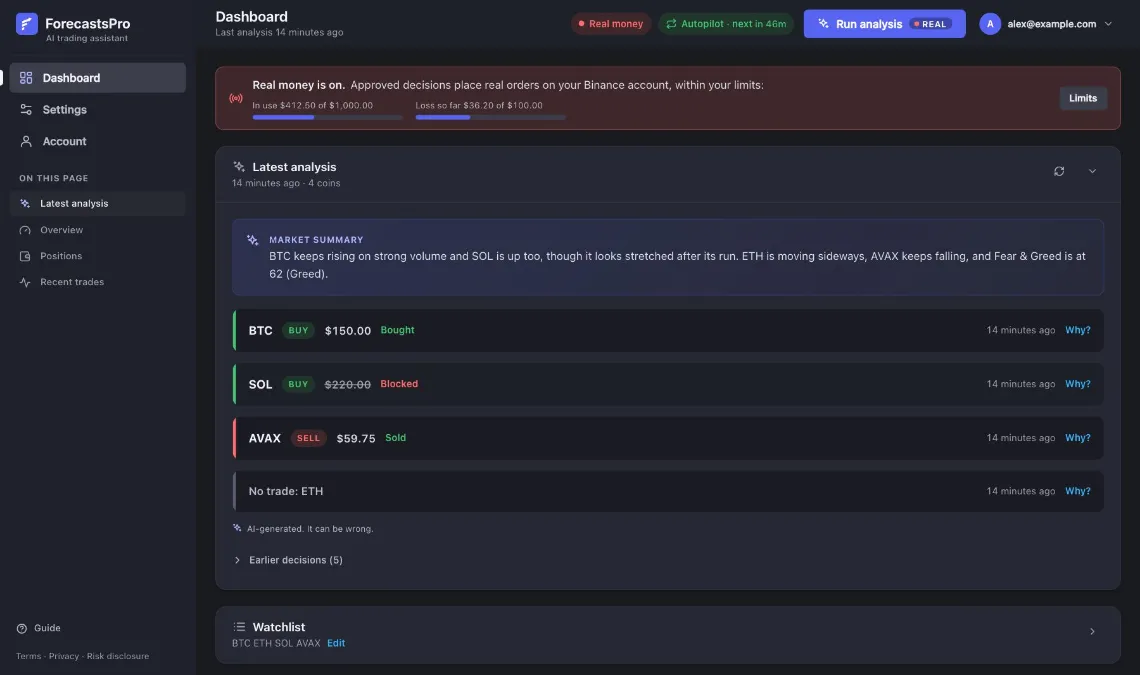
- Real money The mode badge turns red while Real money is on.
- Real tag An analysis you start places real orders. The app asks you to confirm first.
- Real-money banner On every page: the amount at work and the loss so far against your limits.

- In use of your maximum Money at work against your maximum amount.
- Loss so far of your lock Your real-money loss against your loss lock.
- Change limits New limits. The loss keeps counting from the same moment.
- Support Questions? Write to us.
If Real money switches off by itself
The app switches Real money to Off when your key or your country fails a safety check, for example when a permission is added to your key: the Trading mode card says why, and we email you (Telegram too, if connected). Saving or removing Binance keys switches it off too. Nothing is sold, and autopilot only analyzes. Fix the cause, then turn Real money on again.
Support can also switch your trading off, and autopilot with it. The Trading mode card then says so, and we email you. Write to support to have Real money allowed again.
If the loss lock is reached

- Loss lock reached Trading and autopilot were switched off. Nothing is sold: your positions and their orders stay on Binance.
- Review and re-enable Only if you decide to: new limits, the disclaimer again and a new loss count.
All trading and autopilot stop. Nothing is sold, so the loss can still grow on Binance. We email you (Telegram too, if connected). Read your decision journal before you press Review and re-enable.
Download the guide (PDF)The same guide, to keep or to share. 40 pages, 6 MB.