
Screenshots show sample data from a preview account, not real trading results.
The app frame
The sidebar and the top bar are on every page. Settings has five cards: Autopilot, API keys, Trading mode, Telegram alerts and Strategy.
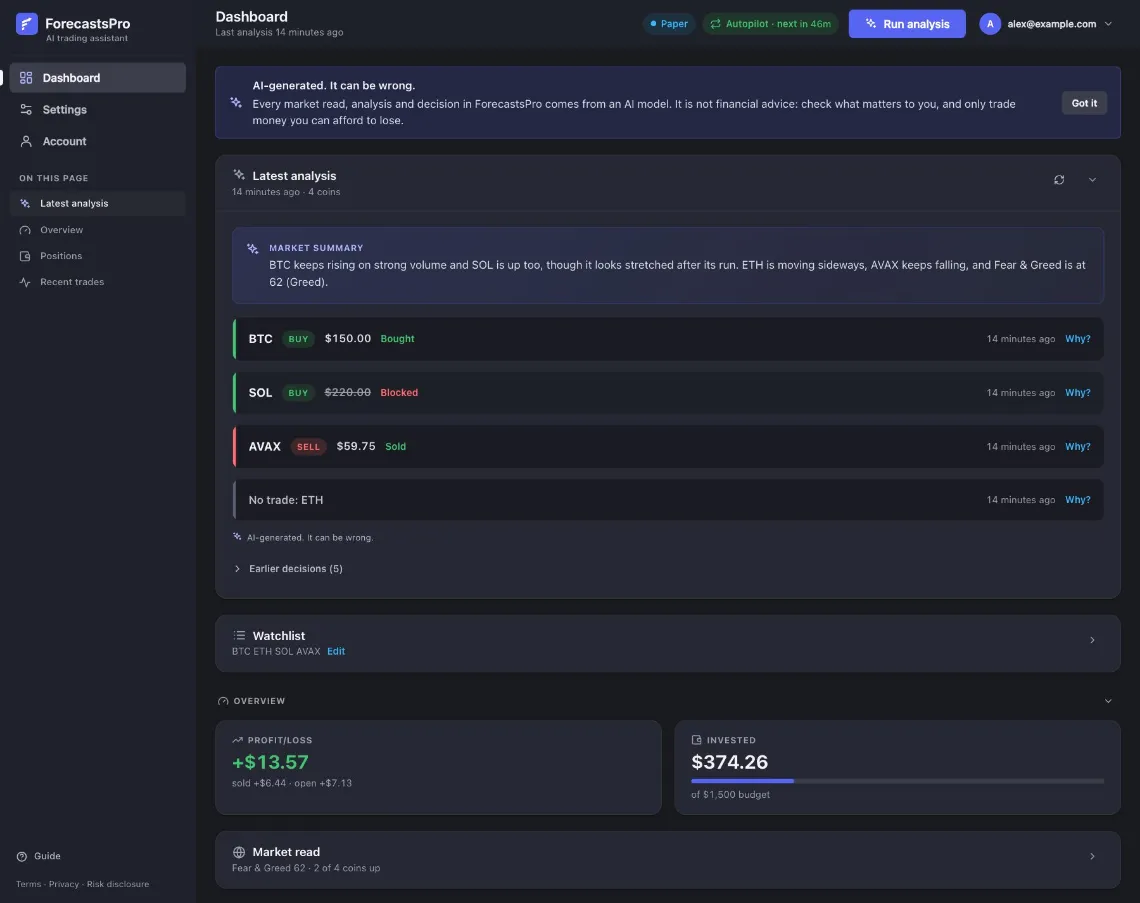
- Logo Back to the dashboard from anywhere.
- Dashboard Market read, decisions, positions and trades.
- Settings Everything you set up, in five cards.
- Account Profile, subscription, risk disclosure, password and your data.
- On this page Takes you to a card of this page and opens it when it is folded.
- Guide This guide, in a new tab.
- Legal Terms, Privacy Policy and Risk Disclosure.
- Mode badge Your mode. Press it to open Trading mode in Settings.
- Autopilot badge Time to the next analysis. Press it for the controls.
- Run analysis Analyzes your whole watchlist now.
- Account menu Account, Settings, Billing, this guide and Sign out.
- AI notice Once per session. Got it closes it.
- Overview Your two figures, for the mode you are in.
- Market read Folded as it starts: the mood in one line.
- Fold Every card has this arrow. It folds or opens the card.
The account menu
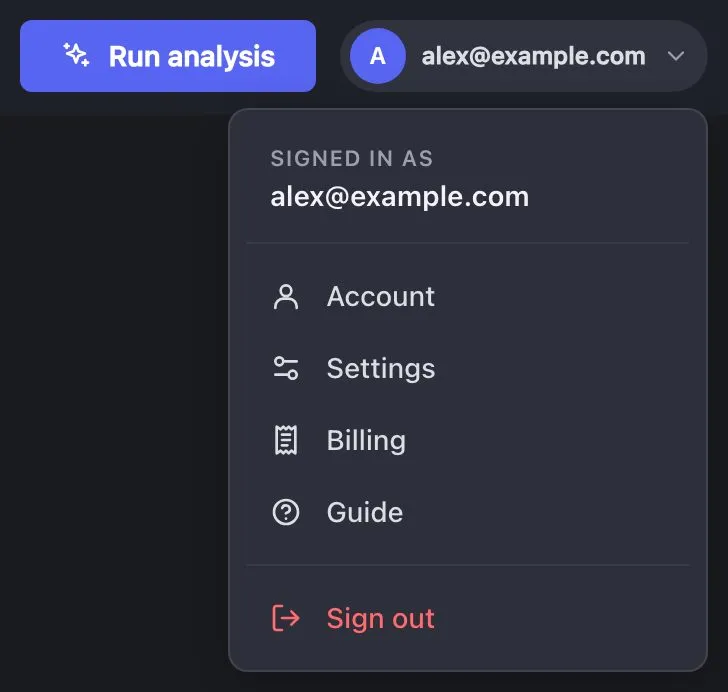
- Signed in as The account you are using.
- Account Profile, subscription and security.
- Settings Autopilot, keys, mode, Telegram alerts and strategy.
- Billing Your access, renewal and receipts.
- Guide Opens this guide in a new tab.
- Sign out Ends this session on this device.
The dashboard, card by card
From the top: the welcome card, Latest analysis, Watchlist, Overview, Market read, Positions, Recent trades, Charts and Research feed. A new account sees fewer cards: the rest appear after its first result.
Fold a card
Market read, Watchlist, Charts and Research feed start folded. A card you open stays open on that browser.

- Overview, folded Both figures stay: Profit/loss and Invested.
- Open Opens it again. Pressing anywhere on the bar does the same.
- Market read, folded As it starts: its title and the mood in one line.
Overview: your two figures

- Profit/loss What your trades made or lost: sold, and still open.
- Invested Money at work, against your budget.
- Fold Folds the Overview into one line that keeps both figures.
Both figures count only the app's trades, or in Manual mode the trades you confirmed. Each mode keeps its own figures. In Off you see Real money or Paper, whichever you used last.
Market read
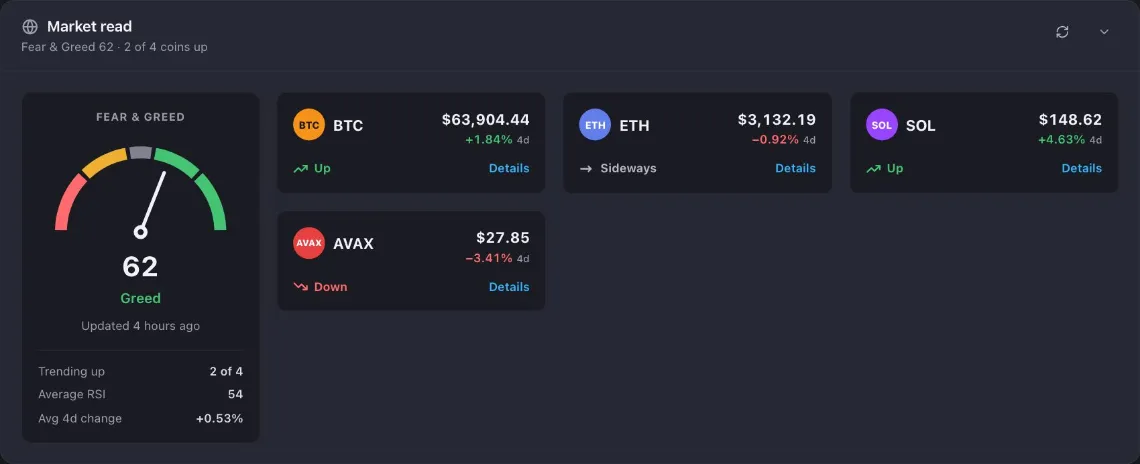
- Mood line Fear & Greed and how many coins trend up: what the folded card shows.
- Fear & Greed Crypto crowd mood: 0 extreme fear, 100 extreme greed.
- Reading Today’s value, its label and when it was updated.
- Watchlist mood Coins trending up, average RSI and average change.
- Coin card One per watchlist coin: price, change and trend. Details opens its numbers.
- Refresh Reloads market data now.
- Fold Folds the card.
Green is strong or up, red is weak or down. Amber is a stretched or very large move, or fear on the Fear & Greed gauge. Chapter 10 explains the numbers under Details.
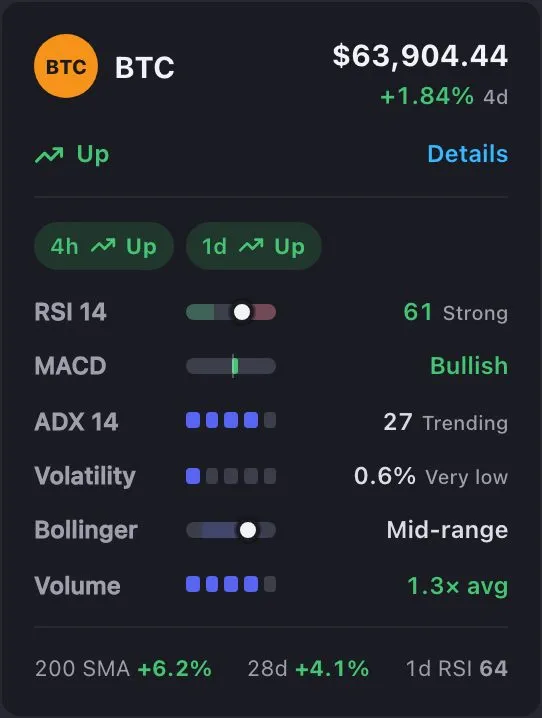
- The coin Its logo and ticker.
- Price and change The price now, and its change over the last 24 candles.
- Trend Up, Sideways or Down.
- Details Opens or closes the numbers below.
- Trading timeframe The trend on the candles the AI trades on.
- Higher timeframe The trend on the next timeframe up.
- RSI 14 Momentum, 0 to 100.
- MACD Momentum direction: Bullish or Bearish.
- ADX 14 Trend strength: Trending or Ranging.
- Volatility Average candle size (ATR) as % of price.
- Bollinger Where the price sits in its bands.
- Volume Recent volume against its average.
- Context Distance from the 200 SMA, the price change over a longer period and the higher timeframe’s RSI.
Charts
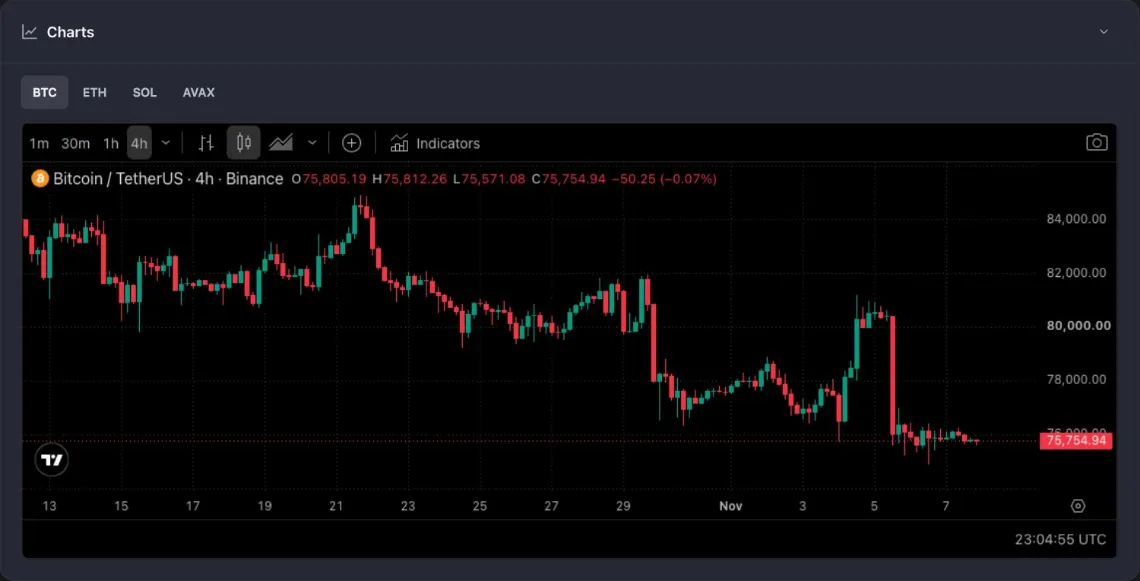
- Coin tabs One tab per watchlist coin.
- Chart Candles sized to your horizon.
Research feed
It shows once you save a news key on the API keys card, under More sources (optional).
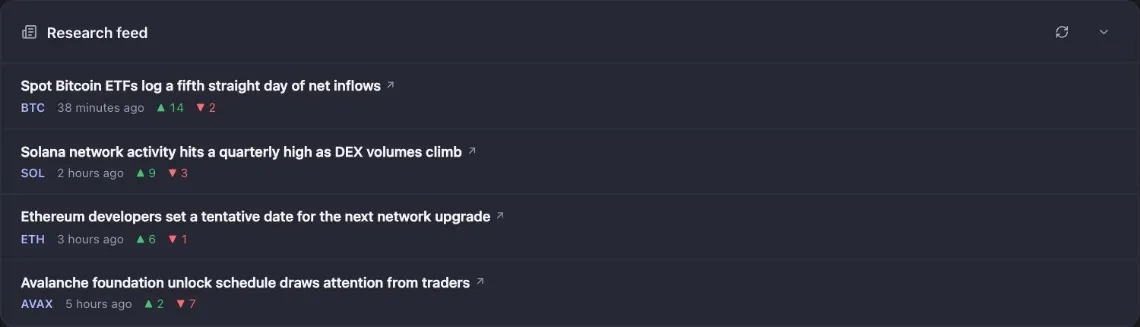
- Headline News for your coins, from your CryptoPanic token.
- Refresh Loads the newest headlines.
Your Account page
Open Account in the sidebar. A red ! next to it means your email is not confirmed, or a new Risk Disclosure waits for you.
Profile
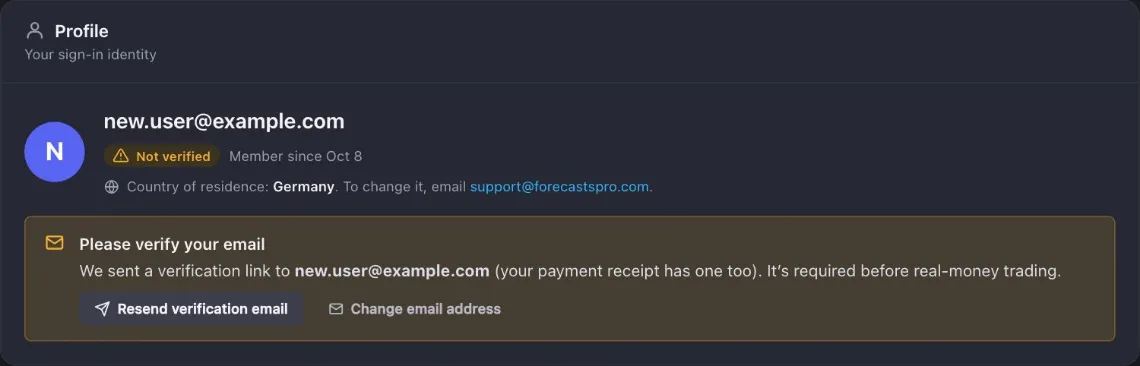
- Your email The address you sign in with.
- Verification Email verified or Not verified.
- Country of residence To change it, email support.
- Resend verification email Sends the confirmation link again.
- Change email address Fixes a typo in the first 48 hours, while unconfirmed.
Subscription

- Your access Until when, and how many days are left.
- Billing Your orders and receipts. Near the end of your access it reads Renew.
Risk disclosure
Real money needs this acknowledgement (chapter 4).
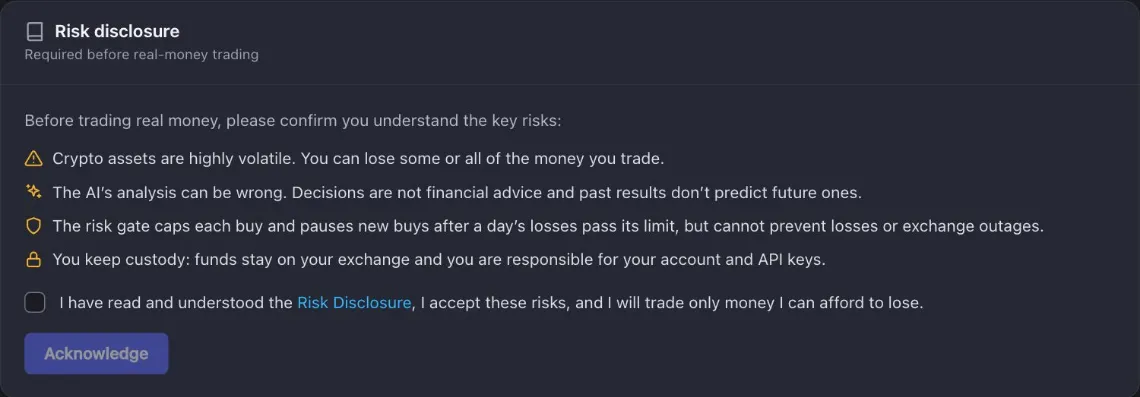
- Key risks The four things to understand before you switch to Real money.
- Risk Disclosure Opens the full document.
- Acknowledgement box Tick it once you have read and accepted the risks.
- Acknowledge Records your acknowledgement and the version you accepted.
A new version of the Risk Disclosure
After a new version, you cannot turn Real money on until you acknowledge it. If it is on already, it keeps running. Press Review and acknowledge in the red banner, read the new version, tick the box and press Acknowledge.

- Red banner On every page until you acknowledge the new version.
- Review and acknowledge Opens the Risk disclosure card on your Account page.
- Account ! The red ! shows which page needs you.
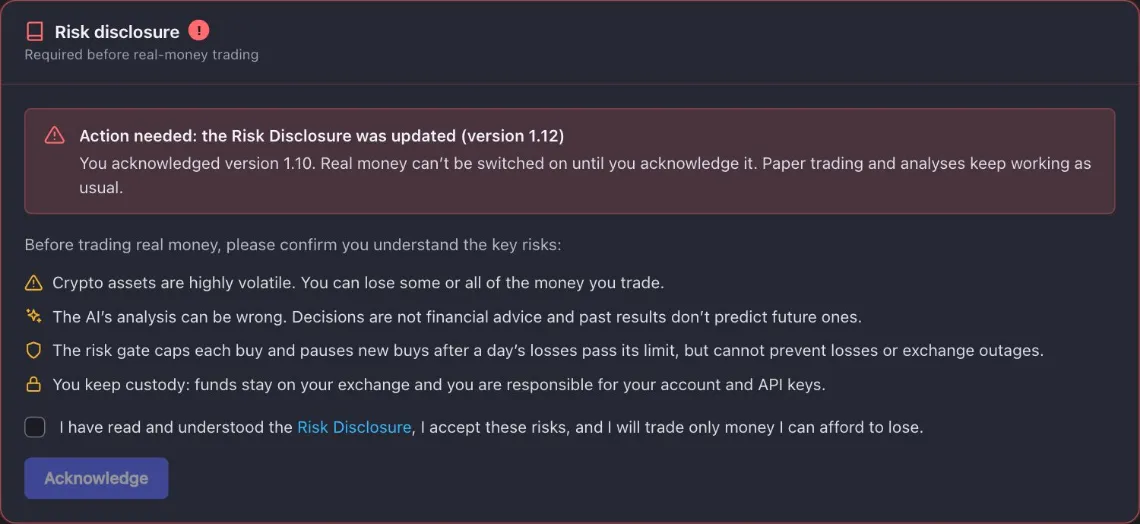
- Red ! by the title A new version of the Risk Disclosure is waiting for you.
- What changed The new version, the one you accepted before, and what is limited until you acknowledge.
- Read and tick The link to the new version, and the box to tick.
- Acknowledge Records the new version on your account.
Password, sessions, your data and deleting your account
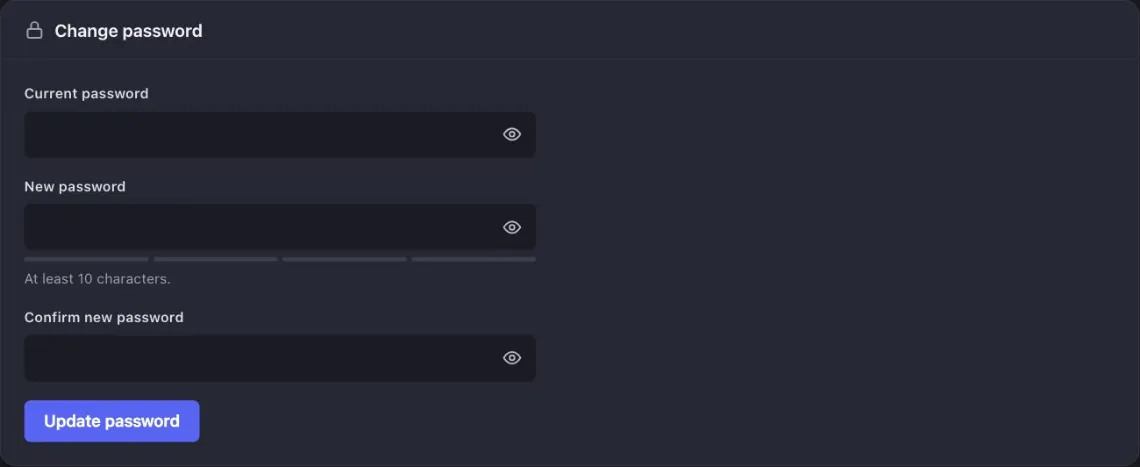
- Current password Proves it is you.
- New password The meter under it shows how strong it is.
- Confirm new password Type the new password again.
- Update password Saves it, signs out every other session and turns Telegram alerts off.
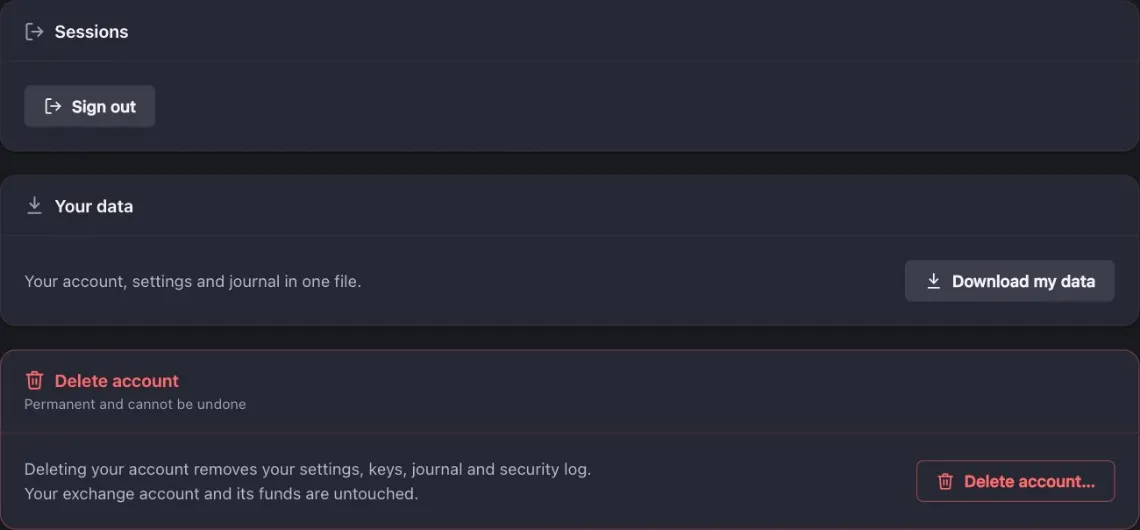
- Sign out Ends the session on this device.
- Download my data One file: your account, settings (never your keys), journal, orders and any Telegram chat ID.
- Delete account Permanent. The app asks for your password first.
Deleting your account permanently removes your settings, your keys, your decision journal and your security log. It also ends your access. Your exchange account and its money are not touched. Orders already on Binance stay there.
Billing and renewal
Open Billing in the account menu. Near the end of your access, a banner in the app has a Renew button. You renew at the price you paid. Nothing renews by itself: we email you 14 and 3 days before the end and on the day it ends.
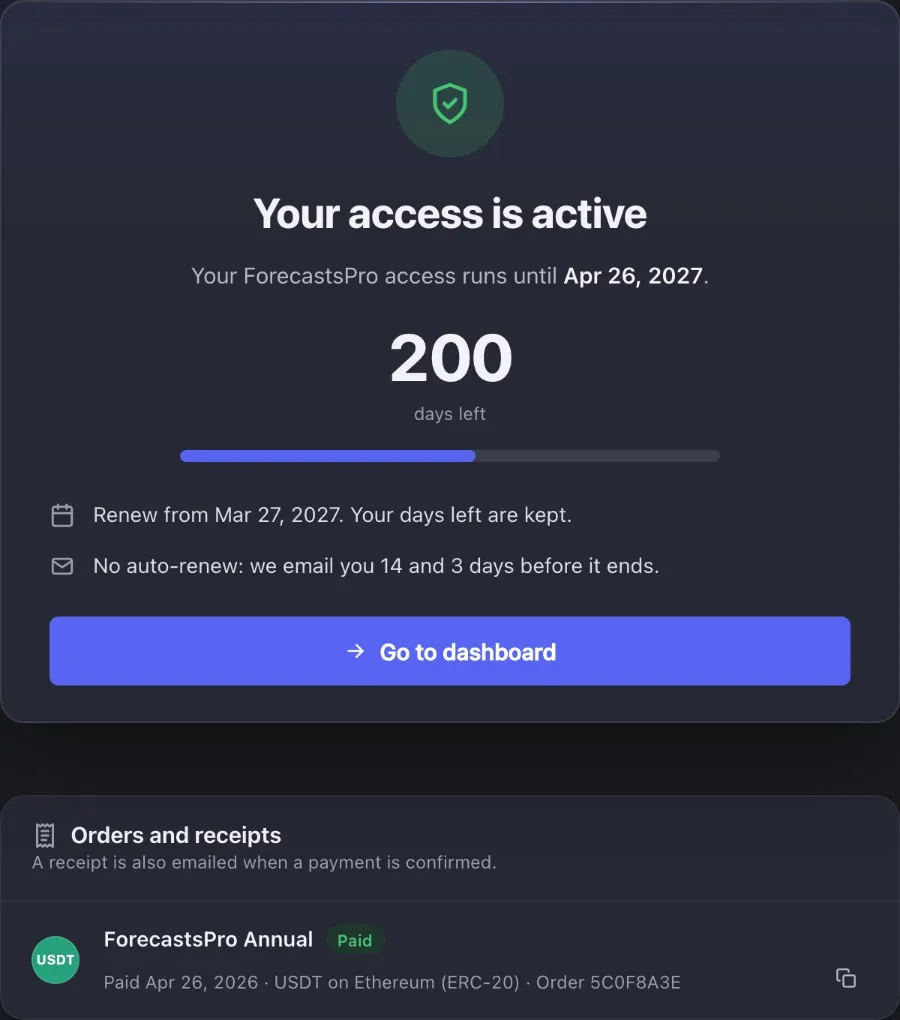
- Access status Whether your access is active, and until when.
- Days left Counts down to the end of your access.
- Renewal Renew from 30 days before the end. Your days left are kept.
- Reminders No auto-renew: we email you 14 and 3 days before it ends.
- Go to dashboard Back to the app.
- Receipt Each order with its status, coin, network and order number.
- Copy order ID Copies the order number for an email to support.
If your access ends, analyses and new trades stop. Nothing is sold. In Paper, each position keeps its stop-loss and take-profit, and they still sell when reached. In Real money, while trading and autopilot are on, the app still puts back a missing stop-loss. The Billing page still lets you switch trading off and remove your keys. After you renew, Real money is off: turn it on again in Settings (chapter 4).
On your phone
ForecastsPro works in the browser of your phone.
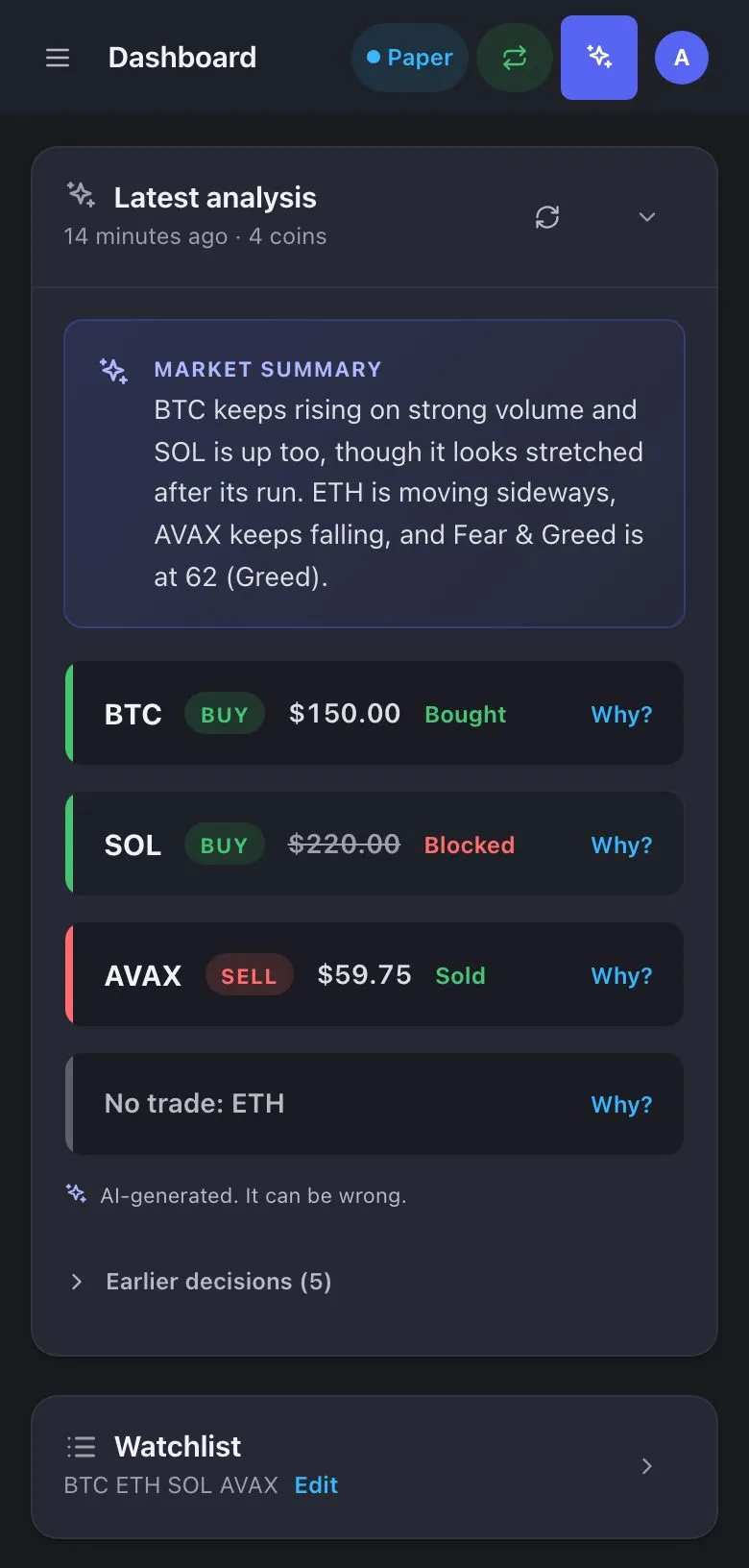
- Menu Opens the sidebar: pages and On this page.
- Mode badge Your mode.
- Autopilot Its icon on a phone. Press it for the controls.
- Run analysis Same as on a computer.
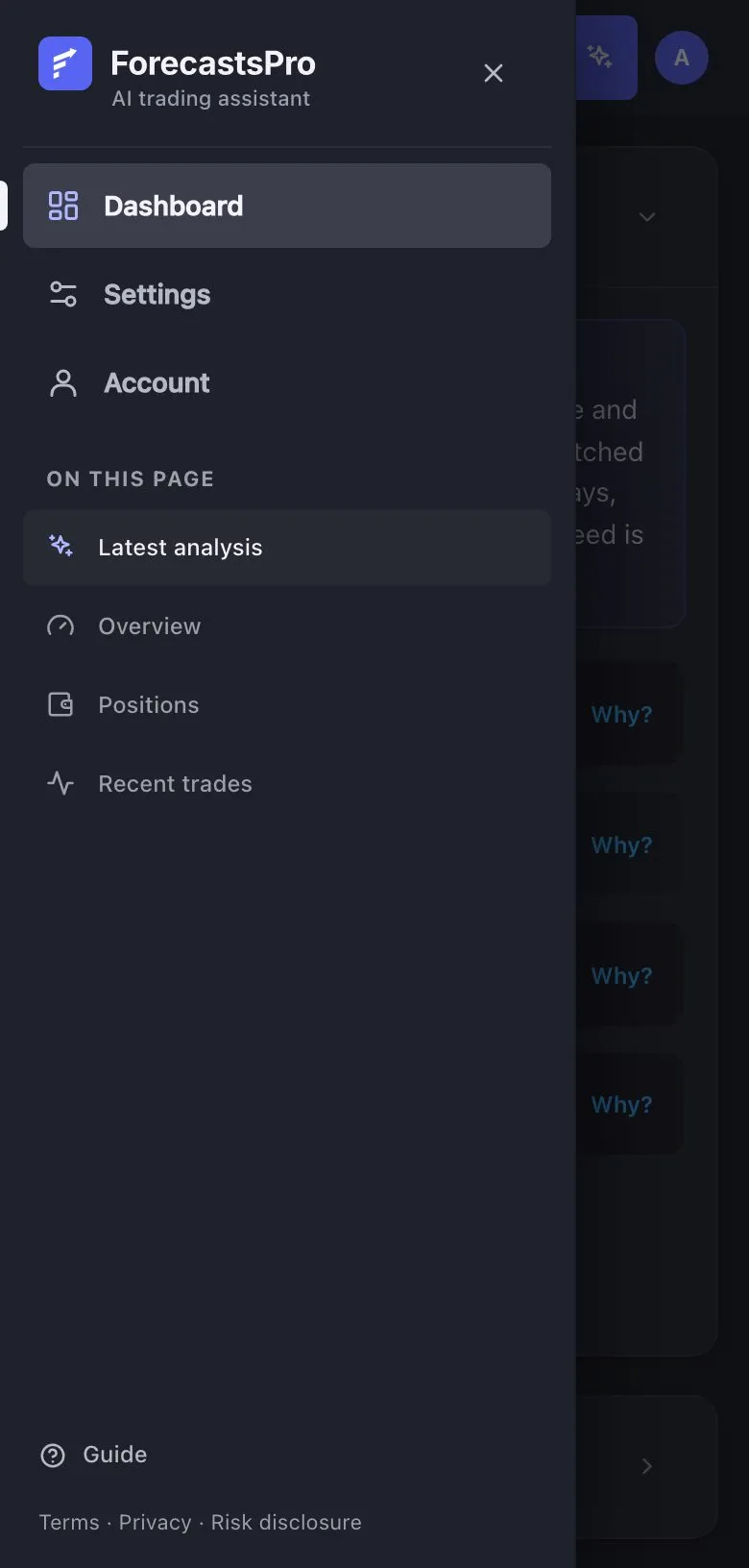
- Pages Dashboard, Settings and Account.
- On this page Takes you to a card of this page.
- Guide This guide, on your phone too.
- Close Closes the menu.
Download the guide (PDF)The same guide, to keep or to share. 40 pages, 6 MB.