
Screenshots show sample data from a preview account, not real trading results.
Latest analysis
The Latest analysis card shows your newest analysis: a line for each buy or sell, and one for the coins with no trade.
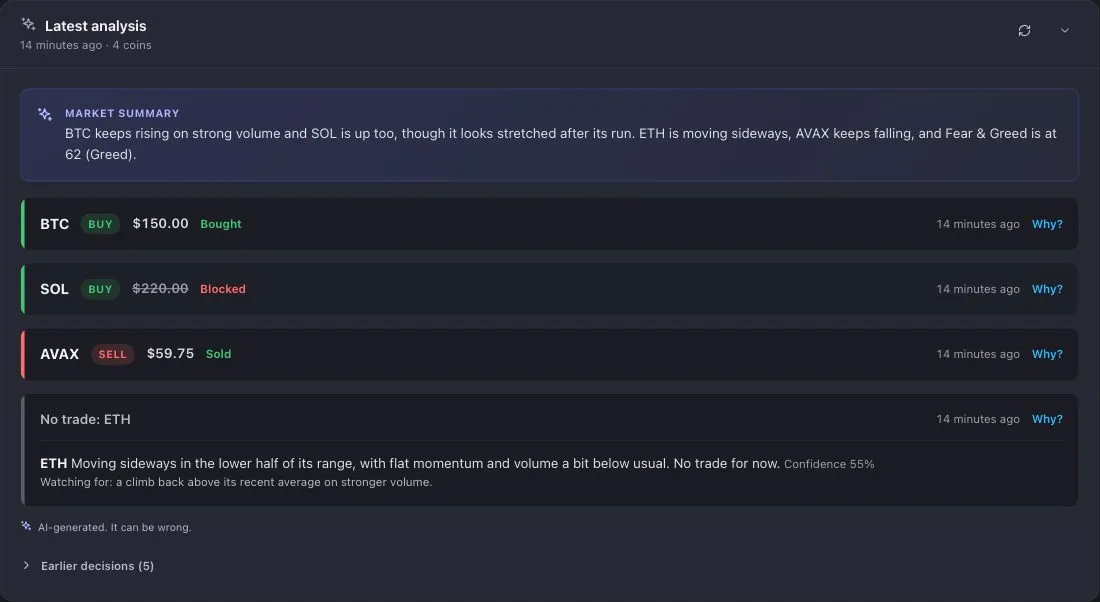
- Last analysis When it ran, and how many coins it covered.
- Market summary The AI’s short read of the market in this analysis.
- No trade The coins the AI holds, in one line. Why? gives each reason.
- Watching for What would change the AI’s mind about this coin.
- AI label Every analysis is AI-generated and can be wrong.
- Earlier decisions The analyses before this one: your decision journal. Press to open.
- Refresh Loads the newest decisions.
- Fold Folds the card.
Here is one line, with Why? open.

- Coin One line for each buy or sell.
- Action Buy or sell. Holds share one line: No trade.
- Amount How much the order is for, in USDT.
- Bought What happened to the order (the table below lists the words).
- Time When the analysis ran.
- Why? Opens the reasoning and the confidence.
- Reasoning Why the AI proposes this, in plain words.
- Confidence How sure the AI is, from 0 to 100%.
- Against it The AI’s strongest reason not to buy.
Buy, sell or hold
BUY opens or adds to a position. SELL sells all or part of one. HOLD means no trade now: on Latest analysis these coins share one line, "No trade".
The word on the line
| You see | What it means |
|---|---|
| Bought, Sold | The order filled. |
| Not bought, Not sold | Approved, but not filled: trading is off, autopilot was stopped, or the order did not go through. |
| Blocked | The risk gate stopped it, or in Manual mode, autopilot was stopped. No order is placed. |
| Failed, Not placed, Not filled, Partly filled, Not confirmed | The order had a problem. Why? says what, in plain words. |
| No stop-loss | The buy filled, but its stop-loss may be missing (red box below). |
| Done by you, Skipped, Expired | A trade in Manual mode. A past buy can add "Take-profit reached" or "Stop-loss reached". |
Why?
Why? gives the AI's reasons and its confidence. For a blocked or trimmed order, the gate's reason comes first. For a buy, it usually ends with "Against it: …", the AI's strongest reason not to buy. For a coin with no trade, it usually ends with "Watching for: …", what would change the AI's mind.
What the risk gate says
| You see | What it means |
|---|---|
| Trimmed by the risk gate to $… (per-coin cap). | Made smaller to fit a cap, then approved. |
| Blocked: per-coin cap … | The coin already has its full share of your budget. |
| Blocked: total budget cap … | Your whole budget is already at work. |
| Blocked: real-money maximum … | Real money only: your maximum amount is already at work. |
| Blocked: confidence … is under the … minimum | The AI was not sure enough for your risk level (70% on Low, 60% on Medium, 60% on High). |
| Blocked: daily loss … exceeds limit | The kill switch paused new buys. Sells still work. |
| Blocked: no … position to sell | There is no position in this coin to sell. |
| Blocked: an earlier … order's outcome is not confirmed … | Binance has not confirmed an earlier order for this coin. No new order for it until it does. |

- Amount crossed out Nothing was ordered.
- Blocked The risk gate stopped it.
- The gate’s reason The rule that blocked it, in the gate’s words.
Positions and trades
The Positions card has two tabs, Positions and More. In Manual mode it shows the positions from the trades you confirmed, each with a Sold button.
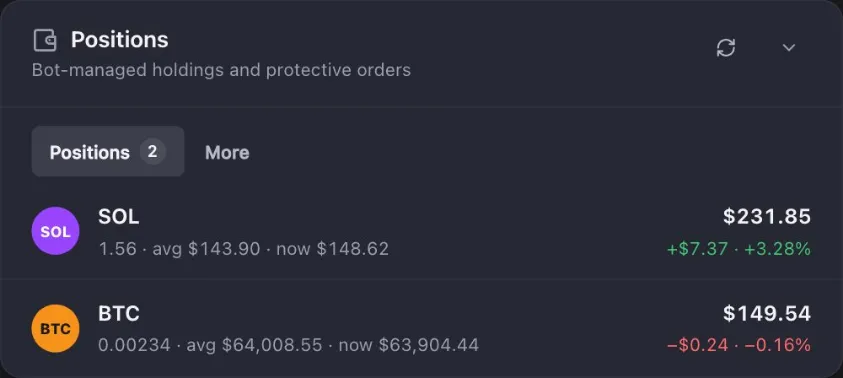
- Positions Coins the app bought and still holds, with how many.
- More Each position’s stop-loss and take-profit. In Real money, your Binance balances too.
- Quantity and prices Amount held, average cost and the price now.
- Value What the position is worth now.
- Unrealized P&L Gain or loss if you sold now, in dollars and percent.
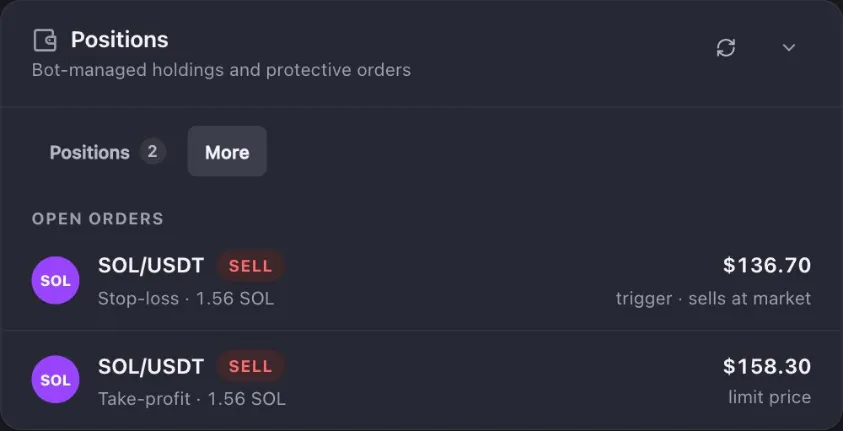
- Open orders Each position’s stop-loss and take-profit: on paper in Paper, on Binance in Real money.
- Pair and side The coin pair and whether the order sells or buys.
- Order type Stop-loss or Take-profit, and the quantity.
- Trigger price The price at which the order triggers.
Recent trades
The orders the app placed, newest first. A refused order says why in plain words, for example "Order too small for Binance." A sale by your stop-loss or take-profit says so, for example "sold by your stop-loss". Coins sold or moved outside the app in Real money show "left the bot" and leave your positions.
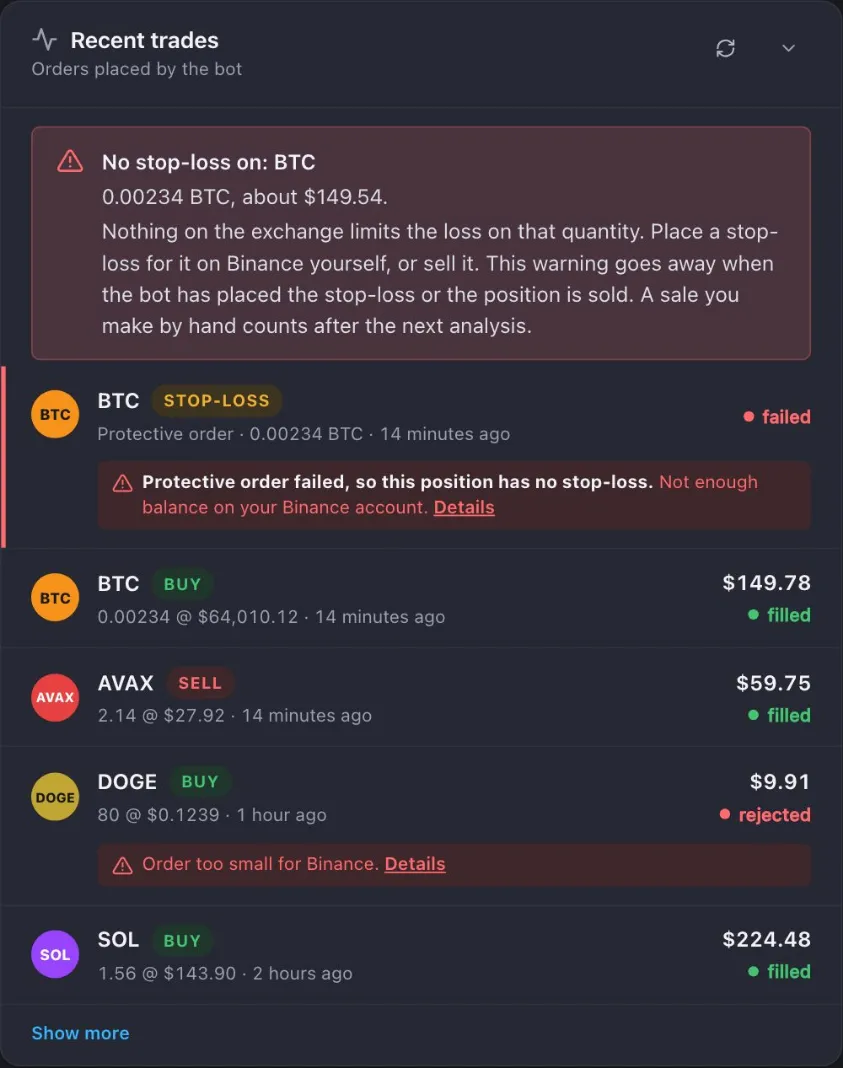
- No stop-loss warning A position may have no stop-loss. The box below says whether you need to act.
- Status What happened to the order: filled, rejected, failed or skipped.
- Quantity and price How much, at what price, and when.
- Why it was refused In plain words. Details shows Binance’s own words.
- Show more The next rows, up to 25.
If you see a red "No stop-loss" box
A position may have no stop-loss. In Paper, there is nothing to do: the app tries again every 5 minutes. In Real money, while trading is on, the app keeps trying to place it. If the box stays, place a stop-loss on Binance yourself for the quantity in the box, or sell it: the box goes once the app's own stop-loss is placed or the position is sold. If Binance does not trade the coin right now, the box says so: to sell it, move it to an exchange that trades it, if Binance lets you. In Real money we also email you, and Telegram too if connected.
Autopilot
Autopilot checks your coins by itself: right away when you start it, then every 6 hours on a new account. Start or stop it on the Autopilot card in Settings, or with the autopilot badge in the top bar. Stopping closes nothing. A check already running finishes without new trades.
- Real money: Start autopilot asks you to confirm first.
- Trading off: the card's Start autopilot turns Paper on first. From the top bar, it leaves trading off: autopilot then only analyzes, and its first check comes one interval later.
- The first check waits one interval while an analysis runs, after one in the same mode in the last 15 minutes, or while a trade waits in Manual mode.
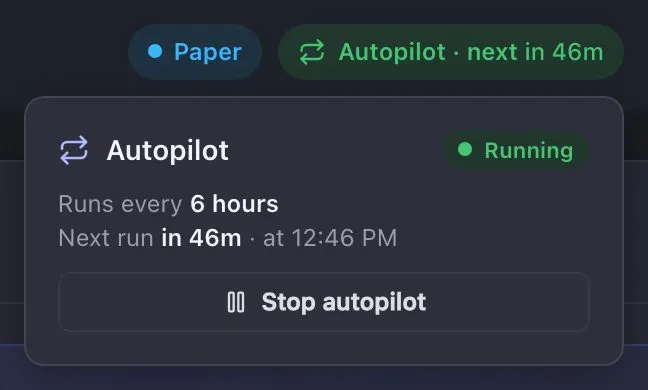
- Autopilot badge Press it to open or close these controls.
- Status Running or Off.
- Schedule Your analysis interval, and when the next analysis is due.
- Start / Stop autopilot Starts or stops the scheduled analyses.
If an autopilot run fails, the badge turns amber: press it to see why, often with a button that fixes it. The Autopilot card in Settings says it too. If autopilot cannot run, for example when your AI account has no credit, we tell you what to do, at most once a day for the same reason: on Telegram if you connected it, otherwise by email.
To check your coins now, press Run analysis at the top right. It can take a few minutes, and a message then gives its rough cost, for example about $0.13.
Download the guide (PDF)The same guide, to keep or to share. 40 pages, 6 MB.