
Screenshots show sample data from a preview account, not real trading results.
1 Create your account and pay
Open the checkout page at app.forecastspro.com/checkout. Fill in the form, tick the box and press the pay button.
Have a code from someone? Before you pay, on the checkout or the Billing page, press Referred by someone? Add their code and type it. If you came through their link, there is nothing to type.
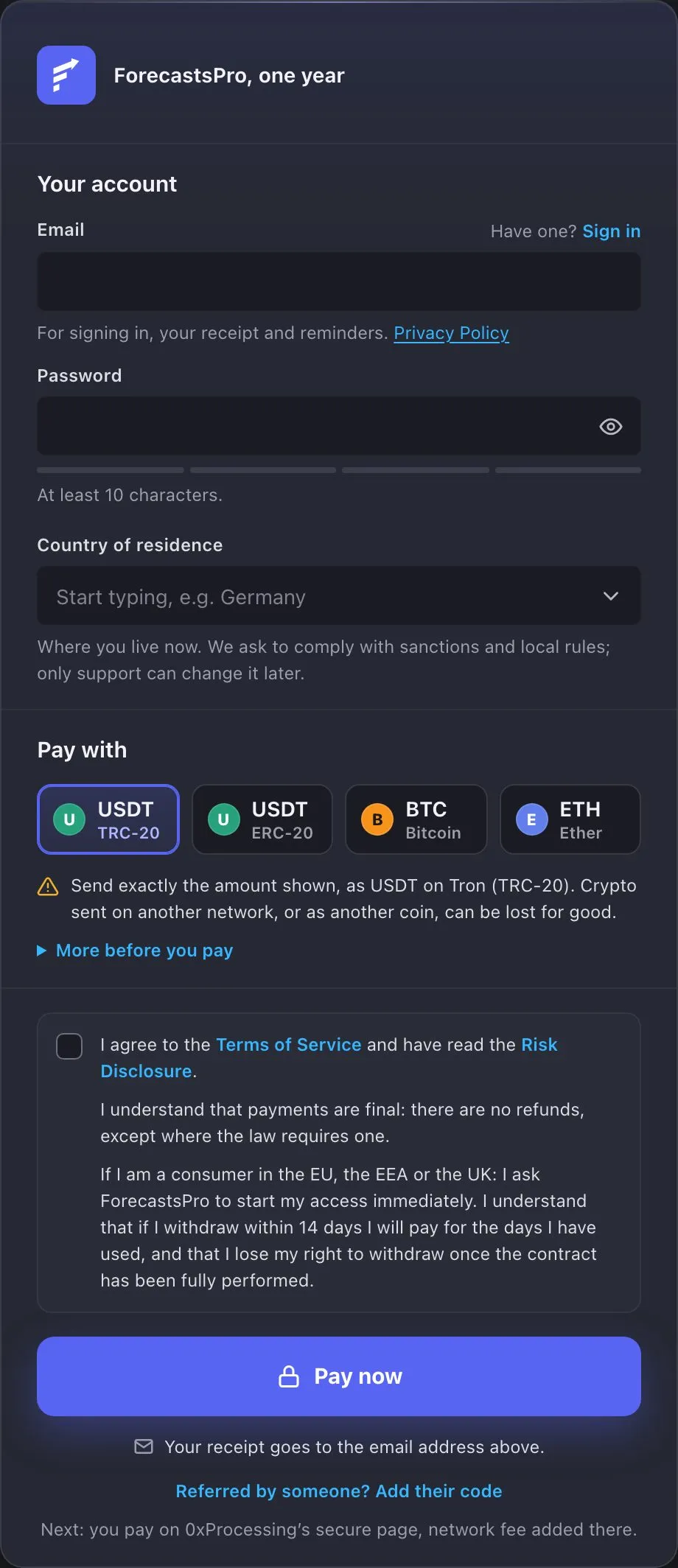
- Email Your sign-in address. Your receipt, reminders and password resets go here.
- Password At least 10 characters. You sign in with it.
- Country of residence Where you live now. Only support can change it later.
- Pay with USDT on TRC-20 or ERC-20, BTC or ETH.
- Network warning Send exactly the coin and network shown. A payment on another network can be lost.
- Agreement box Accept the Terms and confirm you read the Risk Disclosure.
- Pay Creates your account and opens the secure 0xProcessing payment page.
- Referred by someone? Add the code they gave you. Their link already carries it.
On the payment page, send exactly the amount, coin and network it shows, within about 30 minutes. Your access starts once the payment is confirmed, usually within minutes, and runs for 365 days. Your receipt comes by email.
The checkout signs you in on that browser. Elsewhere, sign in at app.forecastspro.com.
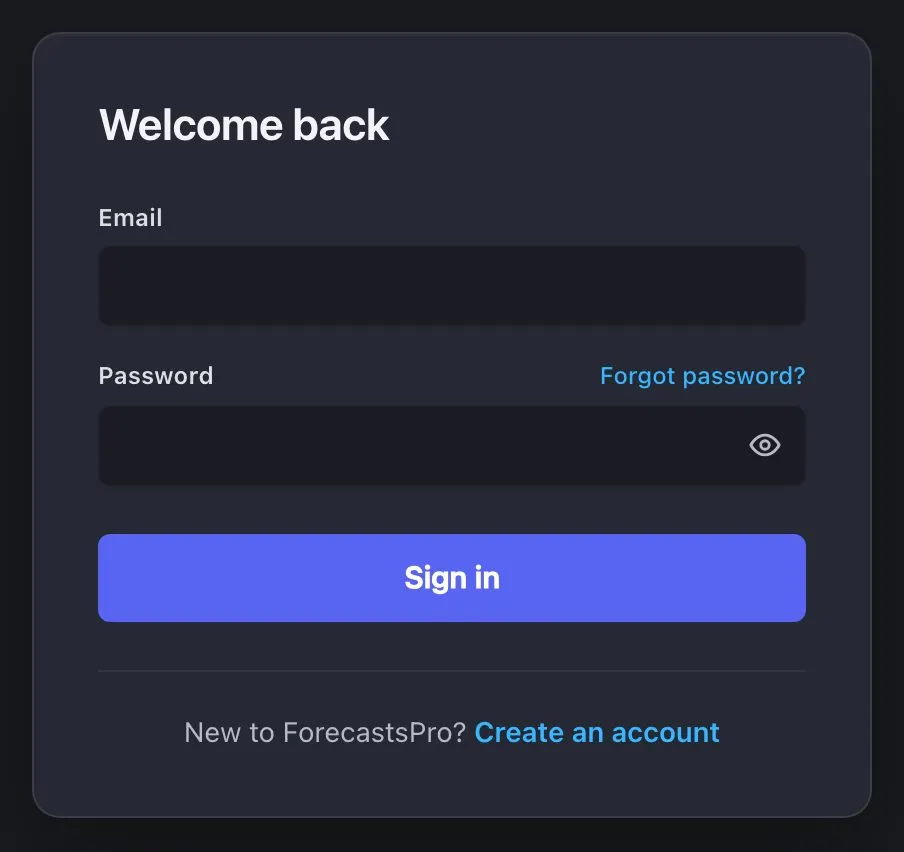
- Email Your account’s email address.
- Password The eye button shows what you typed.
- Forgot password? Sends a reset link to your email.
- Sign in Opens your dashboard. A session lasts up to 72 hours on each device.
Invited by email? Press Set your password in the email and follow the page: it confirms your email and signs you in. If your invitation has a price, pay on the page that opens. Then go to step 3.
2 Confirm your email
Press Confirm your email in your receipt email. Until you do, a banner in the app reminds you, with Resend.
Wrong address? Within 48 hours, before you confirm it, press Change email address on your Account page.
3 Your first analysis
Your dashboard opens with the welcome card. Press Get a key, create your AI key on the page that opens, and add credit there (chapter 3).
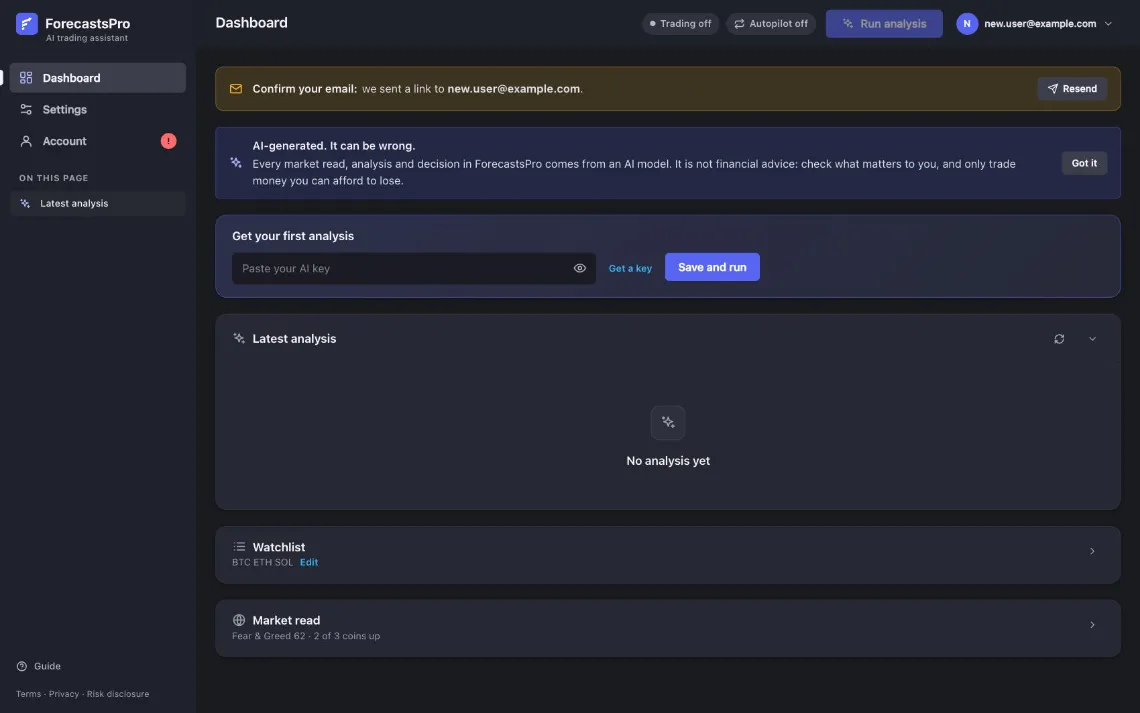
- Confirm your email Stays until you confirm your address (step 2). Resend sends the link again.
- AI notice Shown once per session: every analysis is AI-generated and can be wrong.
- Paste your AI key Paste your AI key here. Get a key opens the page where you create one.
- Save and run Saves the key and runs your first analysis.
- Latest analysis No analysis yet. Your result shows here.
- Watchlist BTC, ETH and SOL to start. Edit changes them.
- Market read Folded: the market’s mood in one line.
- Mode badge Your mode. A new account has trading off. Press it to open Trading mode in Settings.
- Account needs you The ! means an action is waiting on your Account page.
The two welcome steps
- Get your first analysis. Paste your AI key and press Save and run.
- One step left: Start autopilot. Press Start: Settings opens on the Autopilot card (chapter 3).
With an Anthropic key, the most capable AI model thinks it through: your first analysis can take a few minutes. Trading is off, so nothing is bought.
Download the guide (PDF)The same guide, to keep or to share. 40 pages, 6 MB.